A Stray Line Controls and Input
Configure examination, dialogue, and drawing inputs for Sprout Haven's point-and-click spellcasting adventure.
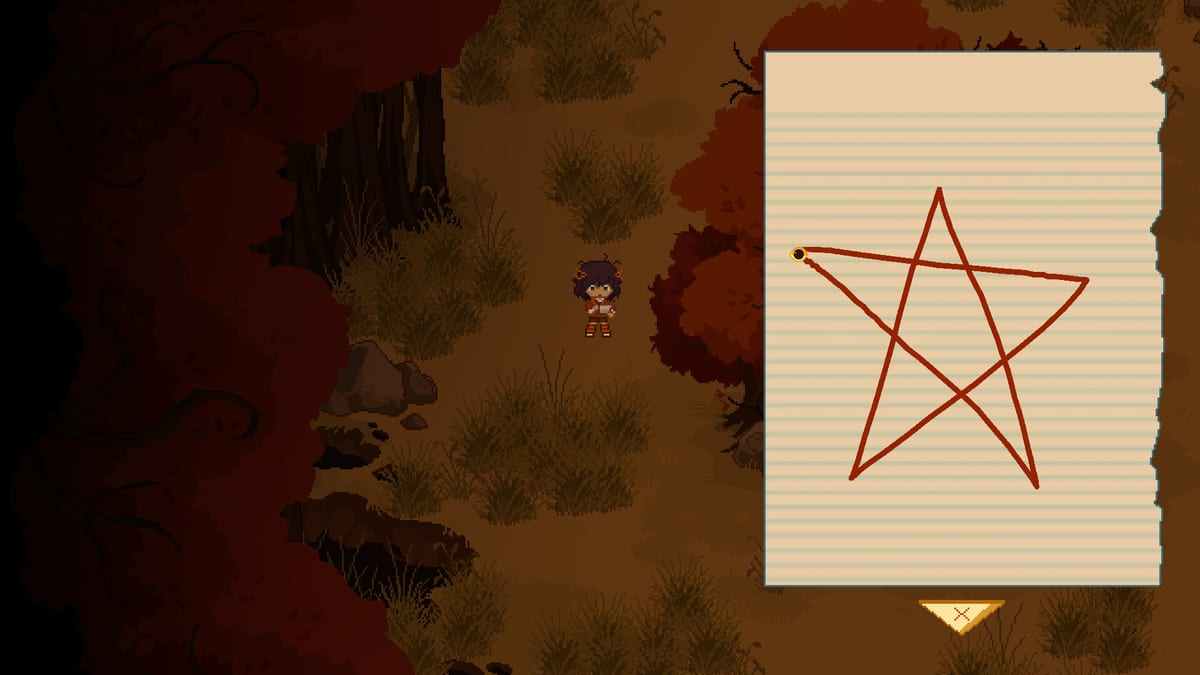
A Stray Line by Sprout Haven is built as a PC-first point-and-click adventure on Steam with a signature draw-to-cast notebook. Official store copy states the game is designed for keyboard and mouse, while the drawing mechanic also supports touchscreens and art tablets. This page explains how to set up each input path before the Chapter 1 demo in August 2026, without assuming unreleased option menus we have not verified in public builds.
Read this guide before Chapter 1 walkthrough prep so your first hour focuses on story rather than fighting cursor sensitivity.
Default PC mouse and keyboard expectations
Classic adventure controls apply:
- Left click selects hotspots, navigates exits, advances dialogue, and confirms menu choices.
- Right click or ESC (common genre convention) may cancel close-ups or open pause menus — confirm in the demo options screen on launch day.
- Inventory access typically uses a persistent UI button or hotkey; note the on-screen icon during the tutorial and write it in personal notes.
Keyboard shortcuts beyond dialogue advance are not heavily advertised by Sprout Haven. Expect minimal typing unless UI search fields appear in settings.
Point-and-click examination habits
Controls only help if your sweep technique is consistent:
- Move slowly along screen edges where artists hide small props.
- Re-enter scenes after story flags; hotspots often reactivate silently.
- Click characters multiple times across conversation cycles; NPCs like Taoyi, Atlas, Winslow, Ilya, and The Tube may have layered lines.
- Hold items from inventory before clicking hotspots to test combinations.
Pair technique with puzzle prep when you suspect a logic block rather than an input block.
Drawing surfaces: mouse vs pen vs touch
Notebook spellcasting and battles require tracing symbols with acceptable recognition. Each device behaves differently:
Mouse drawing
Works for entire playthroughs but demands deliberate strokes. Use moderate sensitivity, draw slightly larger than you think necessary, and lift cleanly at line ends. Small jitter causes failed recognition that feels like a puzzle bug.
Art tablet
Tablets improve battle tempo and notebook precision. Map the pen to primary click, disable double-click assist if it interferes, and calibrate pressure if the demo supports it. See battle system basics for hand placement during projectiles.
Touchscreen
Touch can work for exploration and drawing, but finger occlusion hides lines. Zoom the notebook if the UI allows, or use a passive stylus for shorter sessions.
Session setup checklist
Before launching Chapter 1:
- Update GPU drivers if fullscreen flicker appears on Steam builds.
- Switch Windows tablet mode off unless you prefer larger touch targets.
- Disable OS-level gesture shortcuts that steal right-edge swipes.
- Set display scaling to 100% when possible; UI mis-clicks mimic broken puzzles.
- Plug tablets directly rather than through unpowered hubs during combat segments.
Document any issues on the release FAQ community thread once the demo is live.
Accessibility considerations
Sprout Haven has not published a full accessibility sheet at wiki time. Reasonable expectations for indie adventures include text advance keys, windowed mode, and volume sliders. If color-dependent puzzles appear, we will note them on puzzle prep with patch versions only.
Players sensitive to body horror should configure brightness and take breaks; controls cannot reduce narrative content warnings described on Steam.
Dialogue and UI navigation
Adventure UI stacks often include:
- Dialogue log for rereading mechanical hints buried in flavor text.
- Save/load slots — use multiple slots as a pseudo undo during experiments.
- Notebook toggle separate from inventory; muscle-memory the button early via spell notebook guide.
Mis-clicks during horror scenes can trigger unintended choices. Slow input near branching dialogue is a feature, not a failure.
Combat input overlap
Battles reuse drawing recognition but under time pressure. Controls that feel fine in calm notebook tutorials may fail when you rush. Practice identical symbols in exploration before accepting combat prompts. If recognition fails repeatedly, lower mouse sensitivity or switch input device before consulting walkthroughs.
Steam Deck and handheld PC notes
Steam Deck compatibility may lag day-one unless Sprout Haven marks verified status. Touchpads can draw symbols but require practice; consider external mouse for notebook precision if you play handheld. Check release for official Deck badges post-launch.
When controls are not the problem
If hotspots respond but progress stalls, switch guides:
- Spell notebook for glyph accuracy.
- Puzzle prep for inventory logic.
- Missables for skipped NPC flags.
Related pages
- Gameplay hub — overview of exploration, spells, and battles.
- Guides hub — beginner questions spanning controls and story.
- Tools hub — optional practice sheets for symbol drawing.
Frequently Asked Questions
Quick answers drawn from what players ask most.
Can I play A Stray Line without a drawing tablet?
Yes. Steam lists keyboard and mouse as the primary setup. Tablets and touchscreens are optional enhancements for notebook and battle drawing.
Why do my symbols fail to register?
Often stroke size or jitter, not puzzle logic. Review drawing habits in the spell notebook guide and retest in a calm scene.
Will control bindings be listed here after the demo?
We will document verified menus and hotkeys from public builds on this page, linked from the gameplay hub.
Does right-click cancel close-up views?
Many adventure games use right-click or ESC; confirm in the demo tutorial and note the behavior in your first session.
Are there co-op controls?
No. A Stray Line is single-player on Steam. All input assumptions on this page are for solo play.